Solid fills.
Apply a precise brand color to a shape.
Try it in your agent.
Use this prompt as a starting point. Review the result, then ask for the details you want to change.
A prompt to start from
Use Tesseract. Create an eight-second silent Tesseract colour study. Draw one large sculpted panel on the left, with square-to-soft upper corners and a flowing lower edge. On the right set “Make colour / count.” in large Charcoal Exposure[-30], with four simple palette circles below. The panel uses one solid fill; move through exact Mirage Sea, Sunset, Meadow and Sky colours with short eased colour changes and readable pauses. Keep every colour stop fully opaque and every curve editable. Use a Bone canvas and minimal Denim labels. No gradient or raster texture belongs in the panel.
New to Tesseract? Find the setup for your local agent.
A few useful details.
How do I try this with my agent?
Copy the prompt into your supported local agent with Tesseract installed. Review the preview, then ask for the changes you want. The composition stays editable as you refine it.
Where does the video render?
Tesseract previews and renders locally on macOS, Windows, or Linux. The local engine is free; your agent’s subscription or usage costs are separate.
Try these next.
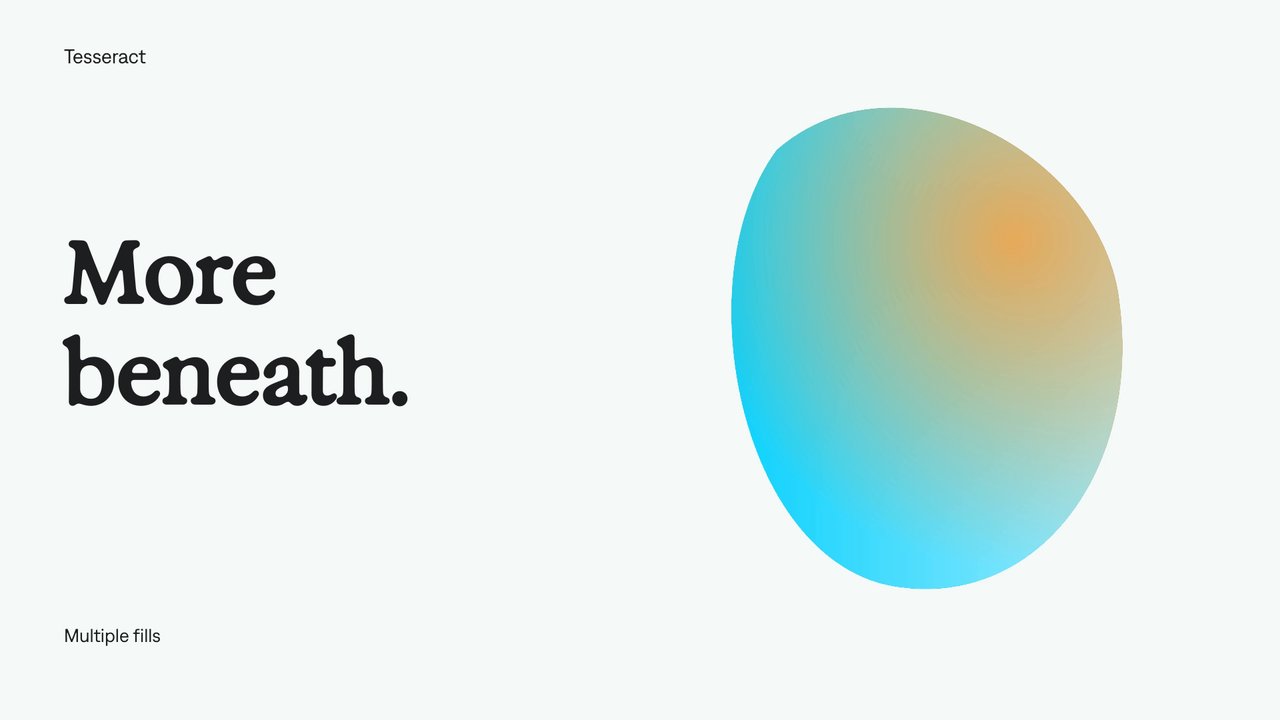
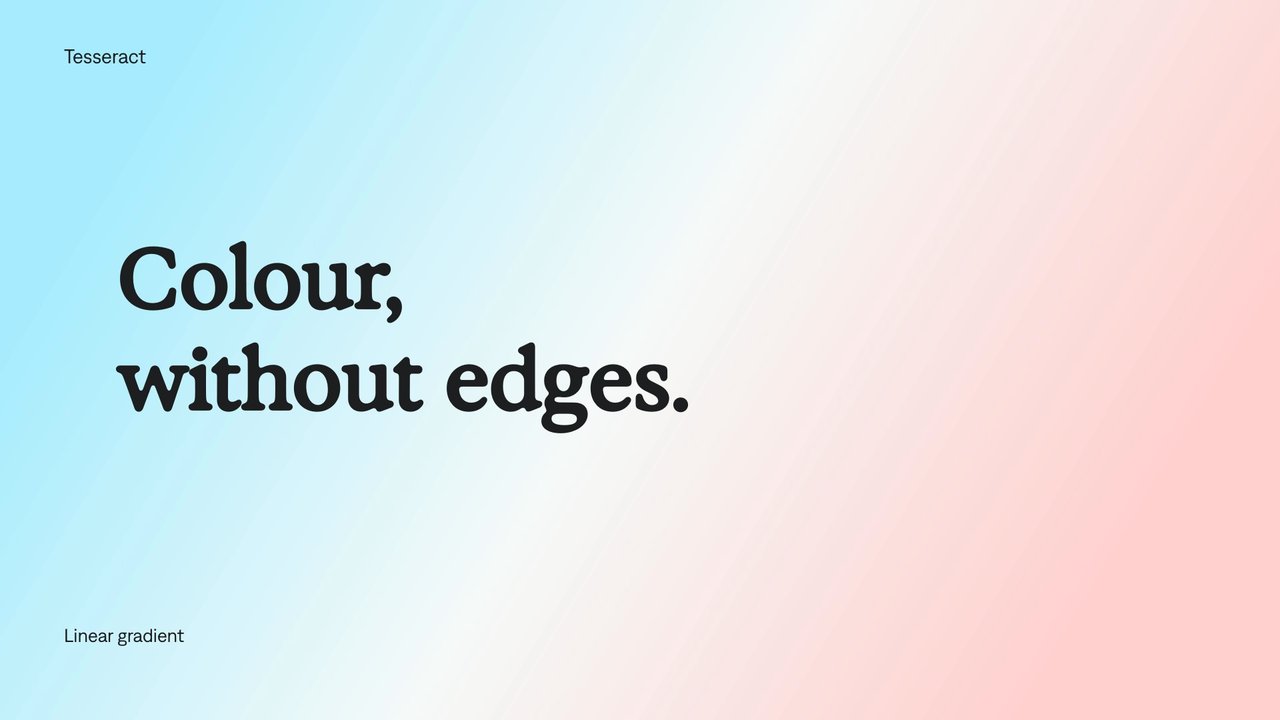
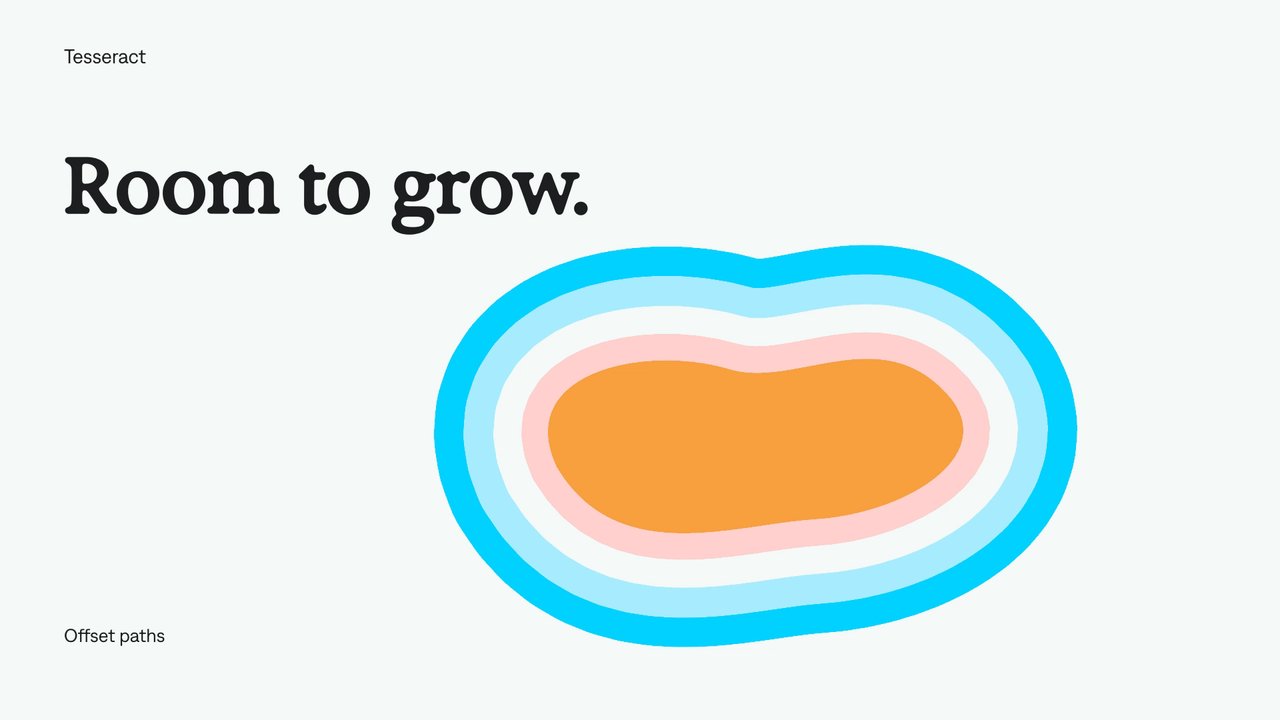
Your next video, made with your agent.
Install Tesseract in your local agent, bring a brief, and start creating.
Free on Mac, Windows, and Linux. Your agent’s costs are separate.
Read the prompt
Set up Tesseract by Mirage so you can create editable designs, edit videos, and make motion graphics in this agent’s environment. Read https://github.com/mirage-hq/Tesseract and check the requirements for this local or hosted environment. If it is supported, follow the official plugin or skills installation guide, use its required runtime version, verify the download checksum, and confirm a short preview renders correctly. Then ask what I want to make and which brand references or source assets I have. Keep the editable project and source assets with the finished render.