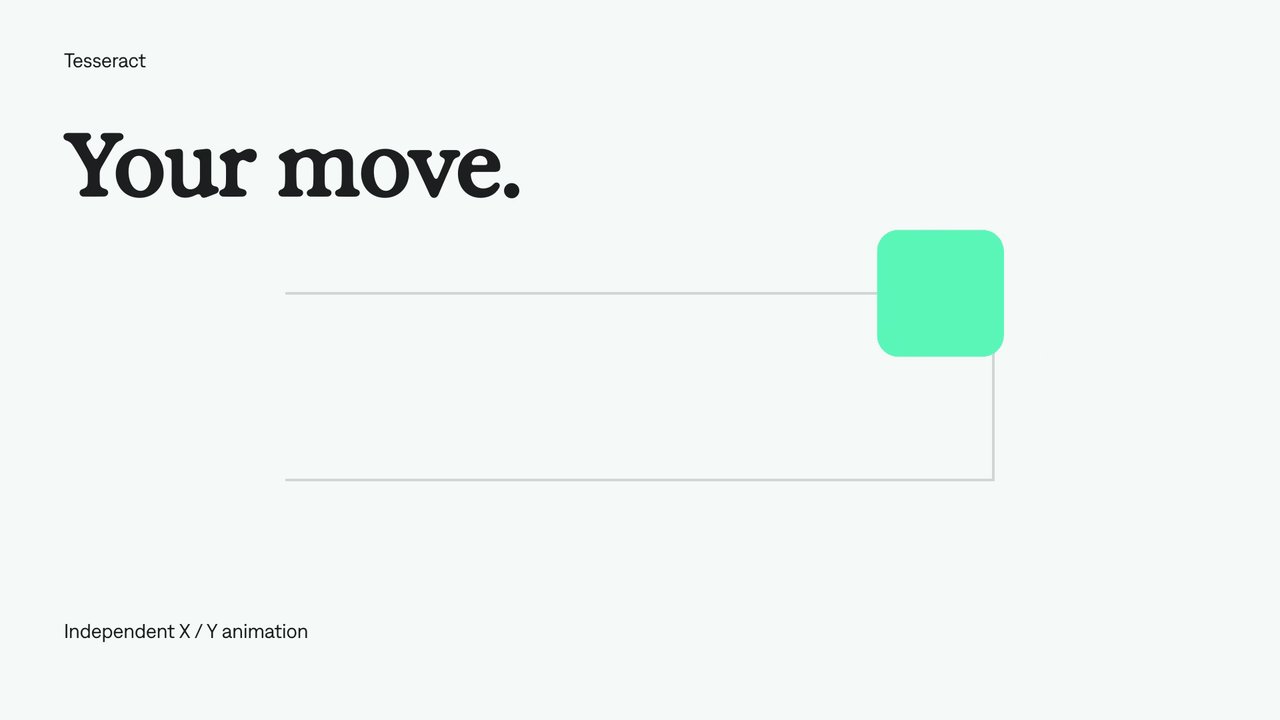
Enable or disable animation.
Park an animated property without deleting its keys.
Try it in your agent.
Use this prompt as a starting point. Review the result, then ask for the details you want to change.
A prompt to start from
Use Tesseract. Compare two keyframe tracks with the same positions and timing. The Sea marker moves along the upper rail. Disable the lower Sunset marker’s animator and set its parked value to 480 px while retaining both original keys. Title the scene “Keep your options.” The QA source should be able to re-enable that existing track.
New to Tesseract? Find the setup for your local agent.
A few useful details.
How do I try this with my agent?
Copy the prompt into your supported local agent with Tesseract installed. Review the preview, then ask for the changes you want. The composition stays editable as you refine it.
Where does the video render?
Tesseract previews and renders locally on macOS, Windows, or Linux. The local engine is free; your agent’s subscription or usage costs are separate.
Try these next.
Your next video, made with your agent.
Install Tesseract in your local agent, bring a brief, and start creating.
Free on Mac, Windows, and Linux. Your agent’s costs are separate.
Read the prompt
Set up Tesseract by Mirage so you can create editable designs, edit videos, and make motion graphics in this agent’s environment. Read https://github.com/mirage-hq/Tesseract and check the requirements for this local or hosted environment. If it is supported, follow the official plugin or skills installation guide, use its required runtime version, verify the download checksum, and confirm a short preview renders correctly. Then ask what I want to make and which brand references or source assets I have. Keep the editable project and source assets with the finished render.